Manage the server
You do most things yourself on the server's page in the portal. Open the server under Services.
Console
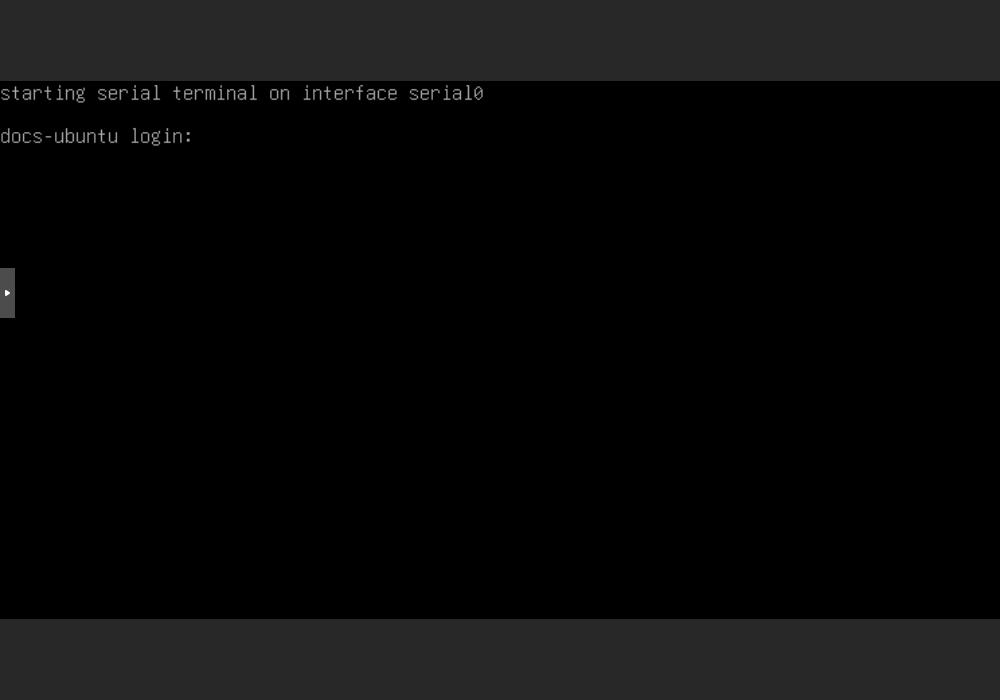
Console at the top of the server page shows the server's screen in your browser. It works even when the server cannot be reached over the network, for example if a network setting has gone wrong.
Log in with the Username and Password from the server overview. The password is only for the console, not for SSH.
Change or add an SSH key
If you have lost your key, or want to log in from a new computer:
- Save the new public key under Security → SSH Keys.
- Open the server. Click the icon on the SSH Keys row in the overview.
- Select the keys in the Reset SSH Keys box and click Submit.
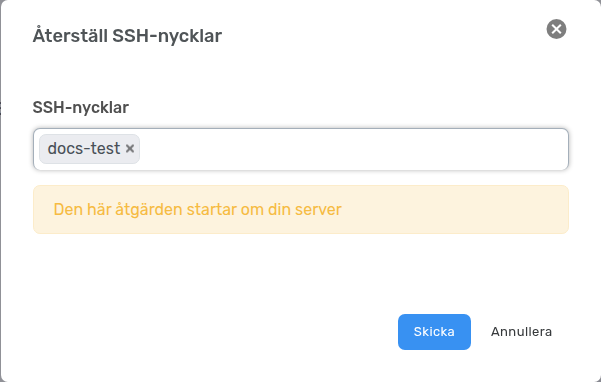
The portal warns that the server will be restarted. The key is added to the server, and you can log in with it once the server is up again.
After the next restart the server gets new SSH host keys, and your computer warns that
the host key has changed. Remove the old entry with ssh-keygen -R and the server's
address, and connect again.
Reinstall the server
With Rebuild you reinstall the server from scratch, with the same or another operating system:
- Choose Rebuild on the server page.
- Choose an OS Template.
- Click Re-Install VPS and confirm.
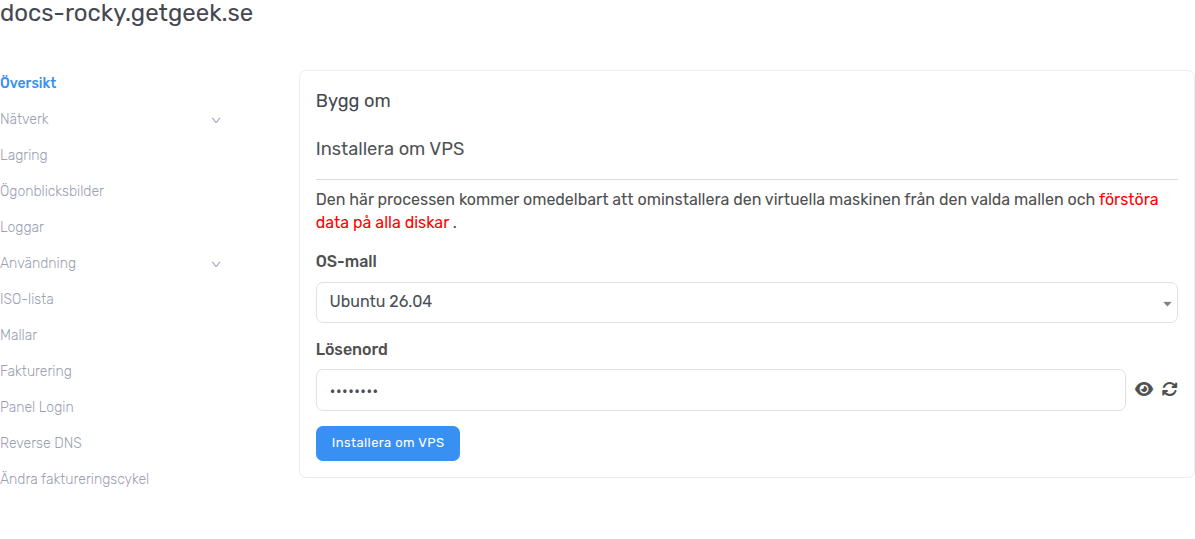
After a minute or so the server is up again. Username, SSH key, IP addresses and hostname stay the same as before.
Everything on the server's disks is deleted. Copy anything you want to keep first.
After the reinstall:
- Remove the old host key with
ssh-keygen -Rand the server's address before you connect. - Set up the private network and extra IPv4 addresses on the server again.
- If you have extra IPv4 addresses: open a ticket, and we will connect them again.
Backups and snapshots
Every night we take a backup of the server and a snapshot. The seven most recent of each are kept.
- You find the backups under Storage → Backups, and when they are taken under Backup schedule. They are stored on a separate backup server in our data center.
- You find the snapshots under Snapshots, and when they are taken under Snapshot Schedule. A snapshot is stored together with the server's disk.
If you need to restore the server from a backup or a snapshot, open a ticket and we will help you.