Sync from your own PBS
If you already have your own Proxmox Backup Server on site, you can use GetGeek as an offsite copy instead of pointing your Proxmox VE directly at us. Your local PBS then sends its backups to your datastore with us using a push sync job, on a schedule you choose. That is the third copy in another location that the 3-2-1 rule requires, and your existing backup jobs in PVE do not need to change.
Requirement: Proxmox Backup Server 3.3 or later (the push direction arrived in 3.3). Some options below require newer versions and are marked accordingly.
Allow 15 minutes for the setup. The first sync sends all data and can take hours; after that it is incremental.
Step 1: Prepare your datastore with us
Log in at https://sto-pbs.getgeek.se:8007 with your password.
A dedicated namespace for the sync
Create a namespace that only the push job writes to, for example
kluster1 or the name of your local PBS:
Datastore → <datastore> → Content → Add Namespace
(see Namespaces).
This keeps the copies from your PBS apart from any backups your PVE makes directly to us. The sync job only writes to groups owned by its own token. A group already owned by someone else, for example your PVE's token, is skipped with the warning not owned by remote user … skipping upload, and those backups never arrive.
The token cannot create namespaces. If you sync a local namespace structure with several levels, the corresponding namespaces must exist on our side before the job runs.
A dedicated API token for the sync
Create a new token just for this job, exactly as in Getting started, step 1:
- Token Name: e.g.
push-lokal - Path:
/datastore/<datastore>(or/datastore/<datastore>/<namespace>) - Role:
DatastoreBackup, Propagate checked
DatastoreBackup
Everything a push job sends is owned by the token in the remote
configuration. If two jobs share the same token, they can delete or skip
each other's backups. Proxmox therefore recommends a separate user or
token per push job.
With DatastoreBackup your local PBS can add backups with us, but not
delete them. If the local server is compromised, the offsite copy is still
untouched, and that is the whole point of it.
Step 2: Encryption — decide before the first sync
A push job sends your backups as they are stored on your PBS. If they are unencrypted locally, they end up unencrypted with us. The transfer is always encrypted (TLS), but the storage is not. Choose one of three approaches:
Combining A and B is a good idea. Mode C suits cases where your local backups for some reason have to be unencrypted.
We never have your encryption keys and cannot recover encrypted data without them. That applies both to the PVE key (mode A) and the sync job's key (mode C). Back up the key before the first sync, in a place that is not your PBS.
Mode C — create the key on your PBS: Configuration → Encryption Keys → Add → Add Sync Encryption Key. Give it a name, let it be generated automatically and export it straight away.
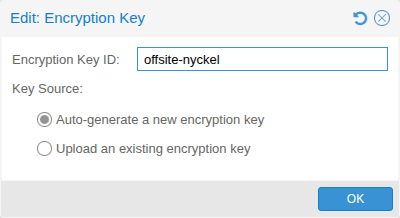
Step 3: Add GetGeek as a remote on your PBS
On your PBS: Configuration → Remotes → Add
- Remote ID: any name, e.g.
getgeek - Host:
sto-pbs.getgeek.se(the port is the default,8007) - Auth ID:
<username>@pbs!push-lokal(the token from step 1) - Password: the token's secret
- Fingerprint: leave empty
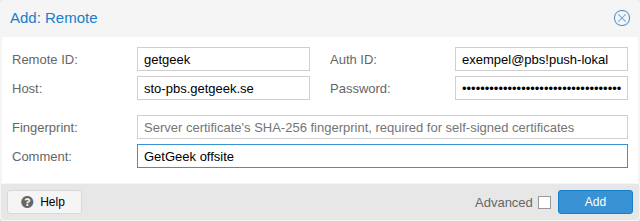
Our certificate comes from Let's Encrypt and is accepted automatically, so no fingerprint is needed.
Step 4: Create the push job
On your PBS: Datastore → <your local datastore> → Sync Jobs →
Add → Add Push Sync Job.
The Options tab:
- Local Namespace: what you want to send (
Root= everything) - Sync Schedule: after your local backups have finished, e.g.
02:00 - Target Remote:
getgeek - Target Datastore:
<datastore> - Target Namespace: the namespace from step 1
- Remove Vanished: unchecked — the token is not allowed to delete, and that is intentional
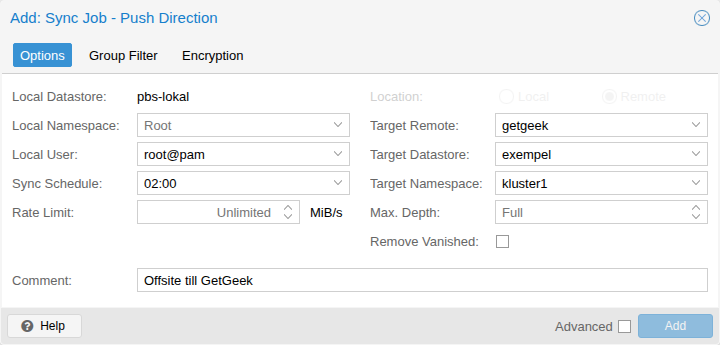
Check Advanced for more options:
- Encrypted Only: mode B from step 2
- Transfer Last: how many of the most recent backups per VM are sent. See the tip below.
- Verified Only: send only backups that have passed verify on your PBS
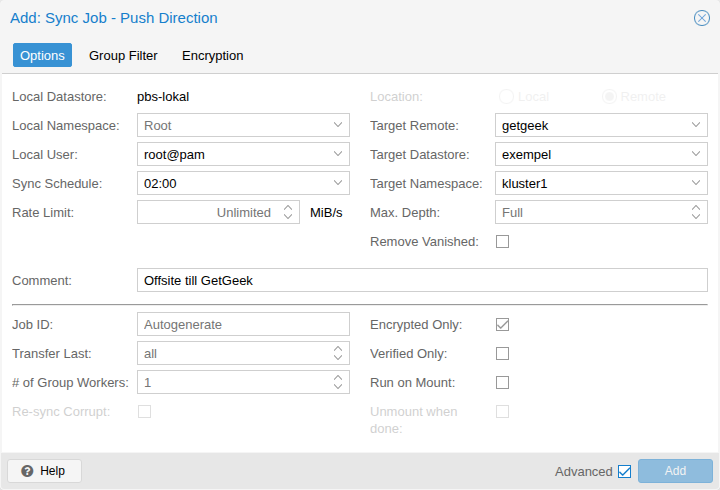
The Encryption tab (mode C only): choose the key from step 2 as the Active Encryption Key.
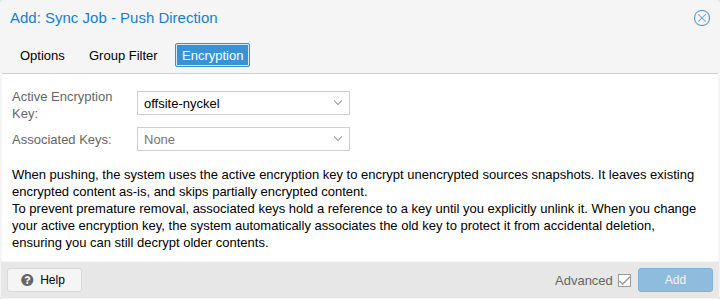
If you only want to send certain VMs: use the Group Filter tab.
Our retention applies to your entire datastore, including
the namespace the push job writes to. If your local PBS holds a year of
backups, the first sync sends all of them, and the prune job that same
evening removes whatever falls outside the policy. Set Transfer Last to
something reasonable (e.g. 14) to save time and bandwidth on the first
sync. If you want a longer history offsite than the default: get in touch
and we will change the retention for your datastore.
Step 5: Run and check
- Select the job and click Run now. Follow the progress under Show Log.
- Log in on our side and open Datastore →
<datastore>→ Content. The groups should be under the namespace you chose. - Test a restore from the copy with us, exactly as in Getting started, step 4. You can add our datastore as additional storage in a PVE with the usual token and restore from there.
After the first sync, the job only sends new backups. Each backup appears on our side as a separate backup task with its original timestamp, so many consecutive tasks during the first sync is normal.
Troubleshooting
Support
Questions or problems? Email hej@getgeek.se — the same engineers who run the platform will answer.