Getting started with VPS
How to order a server and log in to it for the first time.
Step 1: Choose a product
Go to VPS – Virtual servers in the portal. All prices are per month excl. VAT.
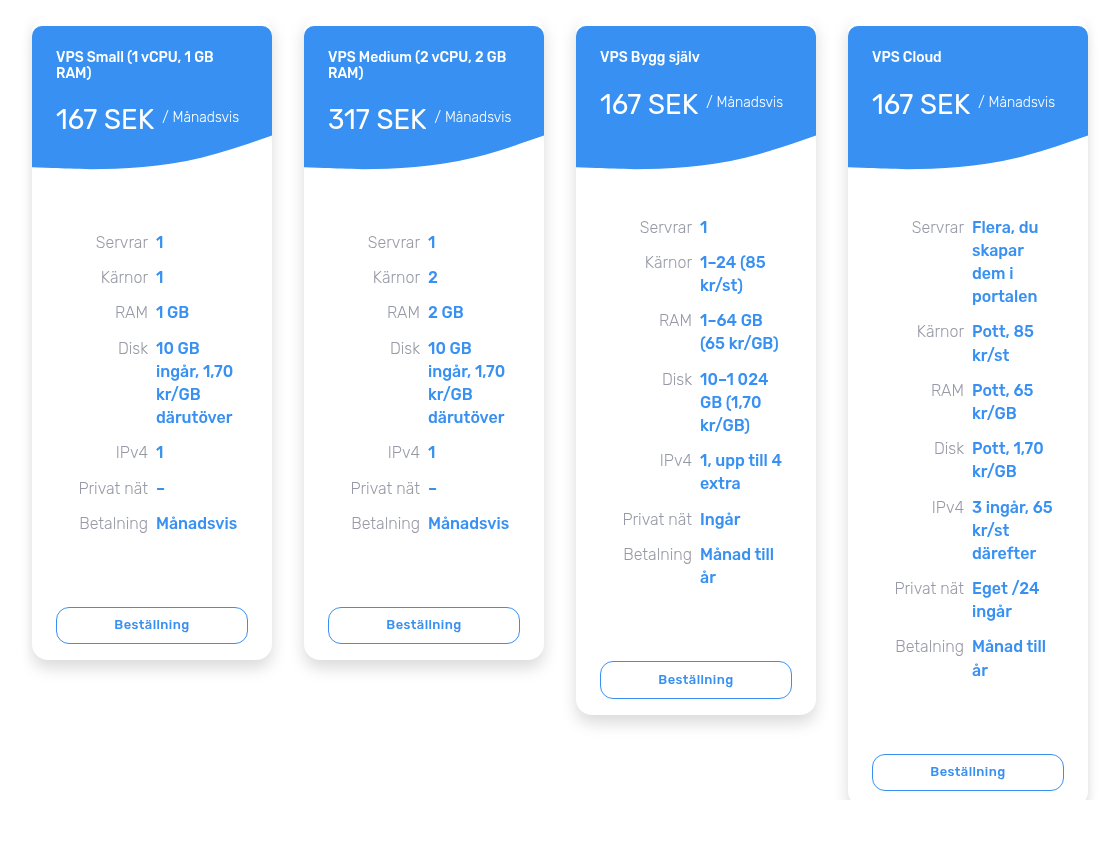
- VPS Small and Medium have a fixed size. You only choose how large a disk you want.
- VPS Bygg själv (build your own) is one server where you choose cores, RAM and disk.
- VPS Cloud is a pool of resources that you split across several servers. You create the servers yourself in the portal after ordering, see VPS Cloud.
Step 2: Order
For Small, Medium and Bygg själv you fill in:
- Hostname, for example
server1.yourcompany.com. It becomes the server's name and is also used for reverse DNS. - OS template: Ubuntu 26.04 or 24.04, Debian 13, Rocky Linux 10 or 9, AlmaLinux 10 or 9, Fedora Server 45 or 44, or FreeBSD 15.
- Size with the sliders. Each slider shows what it costs, and the summary shows what the server costs per month.
- SSH key: pick a key you have already saved, or paste your public key. A new key is saved to your account so you can use it again.
The server is created when the order is complete, and you get an email when it is up.
Step 3: Find the username and address
Open the server under Services in the portal. Overview shows everything you need to log in:
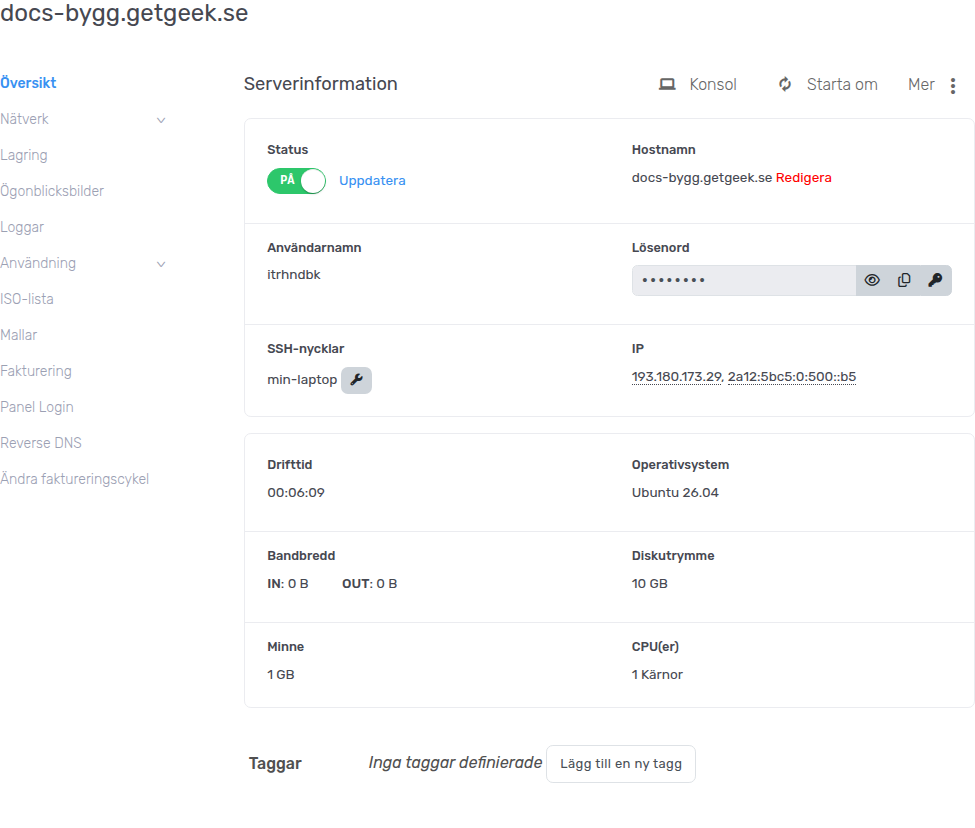
- Username: a random name, for example
itrhndbk. Each server gets its own. - IP: the server's IPv4 and IPv6 address.
- Password: only used when you log in through Console, see below.
Step 4: Log in
Log in with your SSH key:
You can run sudo right away, without a password. Password login and root login are
disabled over SSH.
If you lose your key
Save a new key in the portal and add it to the server, see Change or add an SSH key. You can also log in through the Console with the username and password from the portal.